


Playwright Screenshots: Learn Screenshot Automation with Subba Raju Sir from Coding Masters
If you usually test web applications, or need to make a browser automatically complete some fixed tasks, you must have heard of the tool Playwright. Its screenshot function is one of the most core capabilities for this type of work today.
Simply put, people who do automation testing can save the image of the entire web page at any time during the entire test operation process, or they can just select a single button or a certain form block on the web page to save the current image.
These saved screenshots are extremely useful: they can help you figure out why a test failed, verify whether the application is running normally as required, keep intuitive records of every test result, and even review the entire automation testing process later.
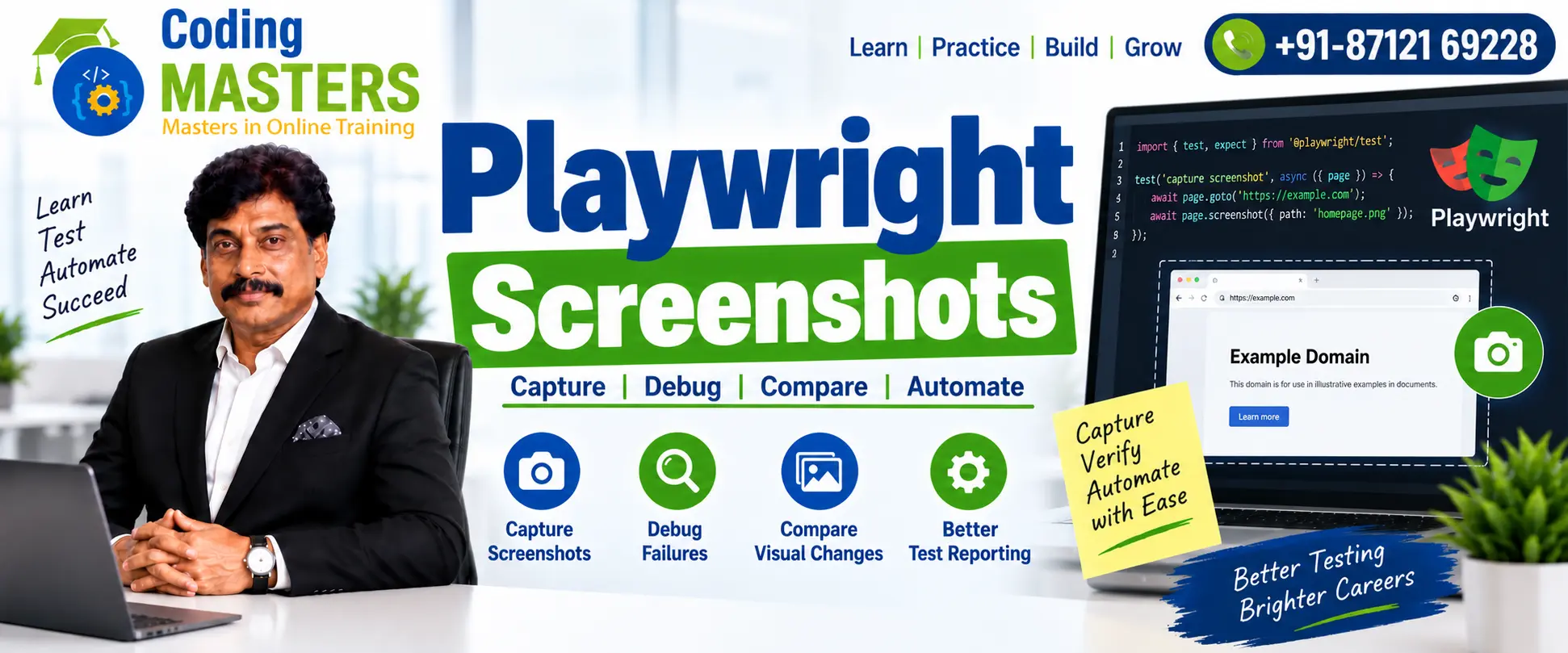
What Are Playwright Screenshots
Put simply, they are images captured directly from the page opened in the browser, or from a specified web page element, during the period when you run automation tests.
Unlike many tools that require additional screenshot software to record screen content, Playwright has native screenshot capabilities built in. You do not need to download any third-party screenshot software to accurately capture the real-time image.
Moreover, the range of this screenshot function is very flexible: you can capture all content of the entire web page, or just capture the small area currently visible in the browser window, and you can even capture only a single specified element.
Why Are Screenshots Important in Automation Testing
Many people who are new to automation testing may ask, tests themselves output failure prompts, so why save additional screenshots? This is because the failure prompts popped up by automation tests rarely include enough details.
Most of the time, the test report will only write a dry line saying “a certain verification step failed”, and will not provide you with any extra information beyond that. You cannot guess what actually happened on the web page at that time.
But screenshots are different: they can save the image of the application at the exact second the test failed, intact, to create tangible visual evidence that you can see.
Core Uses of Screenshots
With Playwright’s screenshots, testers can complete a series of core tasks that are difficult to do well without them: troubleshoot failed test cases, verify whether the layout of the web page meets the design requirements, and record the running status.
They can also properly preserve the test results, detect unexpected UI changes in advance, greatly simplify the troubleshooting process, review the complete execution process of the entire automation test, and share these clear visual evidences directly with the development team.
Basic Screenshot in Playwright
The Playwright development team has made the screenshot process extremely simple, and it can be completed with just one call to a built-in method: testers only need to call the built-in screenshot() function on any Playwright page object.
await page.screenshot({ path: 'homepage.png' });
This line of code will automatically capture the current active page, save the captured screenshot to the file path you wrote in the code, and you can open that folder to view the image directly.
You can also add this screenshot command to any key node in the test process, such as after logging in is completed, or before submitting an order, to record the state of the application’s interface at that moment.
Full-Page Screenshot
Many times, only capturing the small area of the page currently visible in the browser window is far from meeting the needs of testing. Some web pages have particularly long content, such as a very long product description.
At this time, Playwright’s fullPage parameter can solve this problem. Turn on this parameter, and it will help you capture all the content of the web page from top to bottom, completely intact.
await page.screenshot({ path: 'full-page.png', fullPage: true });
Whether you are testing long-content pages, marketing landing pages for user acquisition, complex dashboards full of data, official documentation sites, or any application that carries a large amount of content, full-page screenshots are very useful.
How to take a separate screenshot of a specified element
In addition to capturing the entire web page or a window-sized screenshot, Playwright natively supports capturing a single web page element separately, so you do not need to save the entire web page just to preserve the image.
You only need to first locate the selector of the specified element you want to capture, and you can capture only that area on the screen. This can be achieved with code similar to:
await page.locator('.login-form').screenshot({ path: 'login-form.png' });
If during testing you only need to leave visual evidence of the state of a specific component, such as a login form, a clickable interactive button, the website’s navigation menu, a single product card, a table, or a core component in a dashboard, this method is perfect.
Troubleshooting problems with Playwright Screenshots
Among all the uses of screenshots, one of the most practical is to help you quickly troubleshoot problems detected by tests. As long as an automation test fails, the screenshot saved at that time can accurately restore all the content displayed in the browser.
For example, if a test suddenly fails, and the error reason is “the button to be operated cannot be clicked”, you can immediately identify the situation when you open the screenshot from that time.
Was the button itself set to hidden by code? Was the entire web page still loading, so the button did not have time to appear? Did an unexpected pop-up window suddenly appear that completely blocked the button you needed to click?
This directly visible visual context can greatly reduce the time you spend locating and solving automation problems, turning troubleshooting work that would have taken most of the day into something you can finish in more than ten minutes.
Integration of Playwright Screenshots with test reports
In addition to helping you troubleshoot errors on your own, screenshots can also seamlessly connect with the official test report process, and be used in team collaboration scenarios.
Now, most companies’ automation tests run as part of a large enterprise test framework, and every test run generates a unified test report. At this time, screenshots can supplement the key background information beyond the original “pass/fail” result.
If a report of a failed test is attached with the corresponding screenshot, both testing colleagues and developers writing code can get enough information to analyze the problem, without repeatedly communicating and verifying the scenario at that time.
Using screenshots for UI testing
In addition to troubleshooting errors and generating reports, screenshots are also a core tool for visual testing, and visual testing is a basic link in the quality assurance of modern web applications.
It helps testers confirm that all key elements on the page are displayed correctly according to the design draft, without problems such as skewed buttons, misplaced text, or images that go beyond the screen.
When doing visual testing, testers can take screenshots of the entire web page, individual components, or the complete end-to-end process of a user from opening the website to completing operations.
If your application has complex data dashboards, e-commerce product detail pages, multi-field forms with many input boxes, multi-layer navigation menus, or responsive layouts that adapt to different screen sizes, the value is particularly prominent.
Learning Playwright Screenshots at Coding Masters
If you are a practitioner already working in testing who wants to improve your Playwright automation capabilities, Coding Masters has prepared structured practical learning opportunities specifically for this group of people.
Under the personal guidance of Subba Raju Sir, you can master all core concepts of Playwright through the teacher’s practical demonstrations and real automation scenarios that are completely consistent with the challenges you will encounter at work.
The course does not teach the screenshot function in isolation; instead, it integrates learning to use Playwright Screenshots into the learning of a complete automation framework that can be directly used in production environments.
Follow Subba Raju Sir’s Practical Playwright Training
Subba Raju Sir’s teaching method is different from many courses that only read PPTs. He prioritizes practical demonstrations to help students understand automation concepts, instead of only instilling knowledge through abstract theoretical explanations.
All knowledge points can be learned by following the teacher to write code and practice together. During class, students can practice writing screenshot commands, building web automation processes, proficiently using element locators, writing verification steps, and troubleshooting failed test cases.
The entire course syllabus is structured, so even complete beginners who have never touched automation can follow the course to improve their abilities step by step.
Career advantages of learning Playwright
Now Playwright has become an industry standard technology in the field of modern web automation. Whether it is large companies or startup teams, this tool is basically used for web automation testing.
Developing solid and usable Playwright skills is of great help to your career development. It can not only strengthen your own automation testing capabilities, but also make you work more confidently when dealing with complex modern web applications.
In addition to the screenshot function mentioned earlier, if you can also master other core functions of Playwright — browser contexts, secure authentication processes, built-in debugging tools, parallel execution, and integrated test reports — you can comprehensively master end-to-end Playwright automation capabilities.
Conclusion
In general, Playwright’s screenshots provide a simple yet powerful solution for capturing key visual data during automated web testing. It supports all core testing processes, including troubleshooting problems, generating test reports, verifying whether the UI has errors, recording test results, and analyzing the root cause of failures.
By learning to use the three different screenshot methods of full-page screenshots, standard window screenshots, and specified element screenshots, the automation framework you build can record more valid information, and it will be easier to troubleshoot problems in the future.
At Coding Masters, you can follow Subba Raju Sir’s practical training that is fully aligned with workplace needs to deeply learn Playwright Screenshots and all other core automation concepts, without fumbling along on your own.
As long as you keep following the course to practice with your own hands, you can develop solid Playwright automation capabilities, which are sufficient to handle all web application testing projects in actual work, and become an independent automation testing talent.